how to make a static site with hugo for neocities
· 10-minute read
a friend was bummed out because the ssg they use, 11ty, ran a kickstarter to fund their new website builder which promotes using ai agents in the process of making the site, so i'm writing this for them & also sharing it online for anybody else who wants to move away from 11ty or are just curious about ssgs & not sure which one to start with!
note that this guide is for people who
- want to make their own site in a static site generator like hugo!
- may not be super code savvy but are interested in learning
- don't want to deal with npm or installing programming languages or something
- are comfortable following a tutorial to set stuff up (& can mess around templates themselves after)
- like writing in markdown or are willing to try it at least
that means this guide is going to assume some stuff like you'd rather just have a single binary than have to install a bunch of stuff to just make a website.
there will be a little command line stuff but i promise it's very little & once you have your site set up you won't have to touch it much most of the time.
for people who are already more comfortable with ssgs, reading documentation, & command line, i'll direct you to the links i referenced when setting up my own sites so you can figure out what workflow works for your best:
- hugo quick start guide (hugo documentation) - https://gohugo.io/getting-started/quick-start/
- making a site with hugo for neocities - https://haddock.neocities.org/blog/making-my-site/
- neocities cli - https://neocities.org/cli
- github action deploy-to-neocities - https://github.com/marketplace/actions/deploy-to-neocities
also a bit of an explanation on why this is specifically about hugo & not another ssg...
why i use hugo
i talk about it here too but an updated version of why i personally enjoy using hugo:
- it has a single binary so i don't have to npm install or whatever.
- content is written in markdown so it's portable to other stuff.
- multilingual support is easy!
- it is REALLY REALLY FAST. i've tried jekyll, gatsby, 11ty, & some other random ssgs but nothing has beaten hugo.
- i can make silly shortcodes for including things.
things that might be dealbreakers for people:
- current hugo has ai-generated commits in its database. this lists the last version without it as v.0.151.2, but i am on v.0.145.0 because
- hugo backwards compatibility is not ideal & sometimes their new versions will change stuff that makes you have to update your templates &c. (i don't mind because i don't plan on updating... i don't need my static site to have all the ✨latest features✨ lol)
- it's in go which people might not be familiar with, making it harder to customise. i'm not that familiar with go, but i've found the hugo documentation simple enough to follow & mostly i'm just putting stuff together in html & css anyway!
i've tried other ssgs & they're generally all fine but for me, not having a binary was a dealbreaker. i don't want to deal with dependencies. i just want a single executable that i can use to make my site. i have everything i need to build my site in one folder & i can move that folder anywhere - even a different computer entirely - & just build my site like bam. it's so portable!
after making that post i remade my dev site https://npckc.net in hugo as well. i helped redesign tokyo indies' site & sdhizumi's site in hugo too. i just find it easy & fun to work with!
now, to the actual guide bit.
set up hugo
1. download the prebuilt hugo binary
-
v.0.151.2 - the last version of hugo without ai-generated commits according to this list
-
v.0.145.0 - the version of hugo i am on. i've had no issues & i haven't felt a need to update.
unless you specifically really want to be on an older version, i would suggest v.0.151.2 because in v.0.146.0, hugo introduced a new template system which may require you to update some stuff for backwards compatability.
you'll need to download the binary that matches your operating system.
also you'll see that some versions have "extended" in them. don't get those ones. just get the regular one.
2. put hugo where you want it
extract the zip you downloaded & there'll be an executable inside it. if you're on windows, for example, there'll be a hugo.exe.
move the executable to where you actually want to use it, along with the readme & licence.
for this specific guide we'll be moving this into the site folder afterwards, so i would put it in the root folder of wherever you want your site folder to be. for example, if you want your site in your documents folder, put the hugo binary & stuff in your documents folder.
at this point, hugo's quickstart guide says that you should "Verify that you have execute permission on the file". i didn't actually do this & everything worked fine - i think this might be more of an issue if you're trying to run hugo in a folder where you don't have permission to read/write or something like that.
just in case if you're on windows, you can check this easily by
- right-clicking the .exe to open Properties
- clicking the Security tab & making sure Read & Execute has a check for Allow
on macos/linux you can do this in terminal.
anyway with those two steps done you have now set up hugo! HOORAY! 🎉 easy, right?
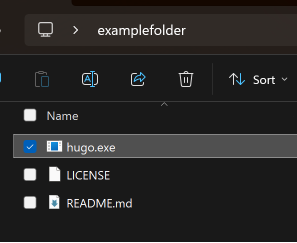
this is what your folder should look like right now if you're on windows.
create your site
first, you need the base files that you will use for your site.
3. make a new site with hugo
you'll need to open a command-line window - e.g., command prompt (windows) or terminal (macos/linux) - for this next bit! it'll be over very fast though.
- open your command line tool (if you're not sure how to do this, look up how to open command prompt/terminal on your os!)
- change the directory to where you put the hugo binary using
cd [your folder here]- for example, this is what it looks like in my case where i've created an example folder on my desktop:
cd C:\Users\kc\Desktop\examplefolder- type in
hugo new site [nameofyoursite]to make your site
for example, i'm going to name my sitehugo-examplesite, so i would type:
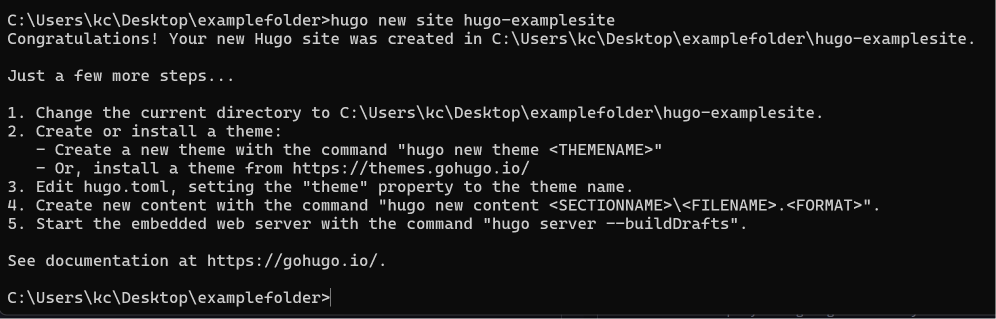
hugo new site hugo-examplesiteyou should get confirmation in the same window that it was successful!
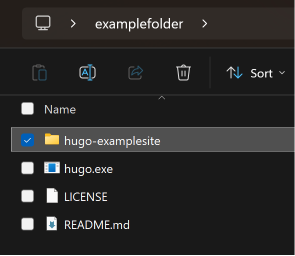
you'll see that the folder you have the hugo binary in now has a folder with the name of the site you typed in earlier. that's where your site will live!
4. move your hugo binary to your site folder
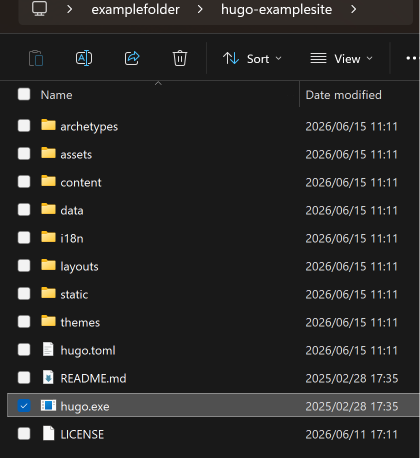
move the hugo binary, readme & licence to your site folder. from now on, we're going to be working in this folder for everything!
5. download a theme
now, you need a theme for your blog. technically you can create your own theme & start everything from scratch but that's a lot of work & i'm assuming if you're reading this you don't want to do that.
here are some examples of themes:
-
bear cub - the one i use! it's very barebones but it has easy multilingual support so i just use it as framework to build up my sites. it's based on bear blog & hugo bear blog.
-
hugo bear blog - the hugo theme bear cub is based on. also very simple.
-
neopost - i haven't used this but when looking up hugo/neocities i found this theme that's based on the neocities look. NOTE THAT NEOPOST REQUIRES THE EXTENDED VERSION OF HUGO.
you can search for themes on hugo's theme directory. the tags will help you find something that fits what you want. (e.g., if you want to have multiple languages, look through the multilingual tag.)
if you go to a theme's page, you'll see more info for it & sometimes there'll be a "Demo" link too so you can see what it looks like in practice. here is the demo page for bear cub.
my personal suggestion is to go with something more minimal because i think it's easier to customise something with less initial moving parts, but i know not everyone wants to actually deal with all of that, so find a theme you like & go for it 😎
now, for how to you can use git to install a theme but i am going to explain how to do it just by downloading a theme directly.
from the theme page on the hugo theme site, you'll see a "Download" button that will usually lead to a github page.
on the github page, there'll be a button that says "<> Code" in green. click it & a drop-down menu will pop up, where there'll be a button that says "Download ZIP" - download the zip!
then, you'll want to unzip that & put that in the themes folder inside your site folder. note that you want to move the unzipped folder & not just drop the folder's contents direct into the themes folder.
here's an example if you had downloaded the bear cub theme.
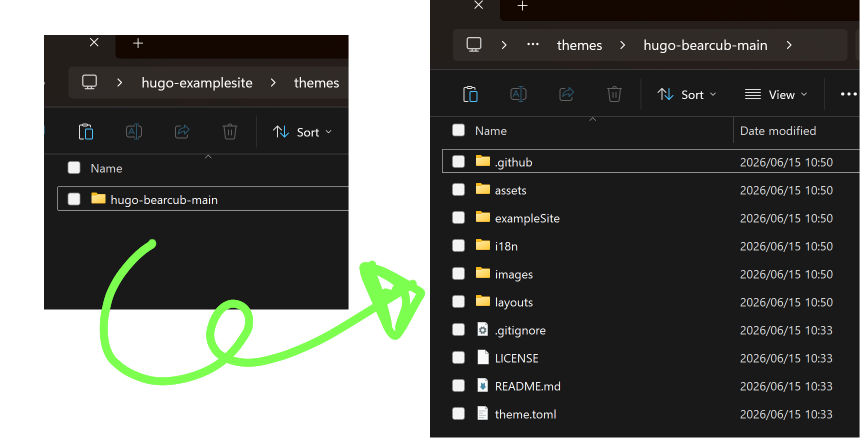
(you can rename the folder if you want but note that whatever the folder's name is here will be the name of the theme when you use it to make your site.)
5. set up your site
inside the site folder you'll see a file called hugo.toml. we're going to edit this to set up your site!
right now, all it will say is
baseURL = 'https://example.org/'
languageCode = 'en-us'
title = 'My New Hugo Site'
these are necessary for pretty much any hugo site, so you should replace them with the info for your site as well as add the theme you're using with the text theme = '[your theme here]' - the theme name is the name of the folder in the themes folder.
for this example site, this is what it would look like:
baseURL = 'https://hugo-examplesite.neocities.org/'
languageCode = 'en-ca'
title = 'example site made in hugo'
theme = 'hugo-bearcub-main
at this point, you can technically already make your site! but there's nothing in it & you haven't finished customising your theme yet.
if you'd like to check out what your site looks like at this point in time though, use the following commands:
cd [your folder directory]
hugo serverthe window will say something like Web Server is available at http://localhost:1313/ so go to the localhost url listed & you'll see what your site looks like now! (it might look a little weird still though.)
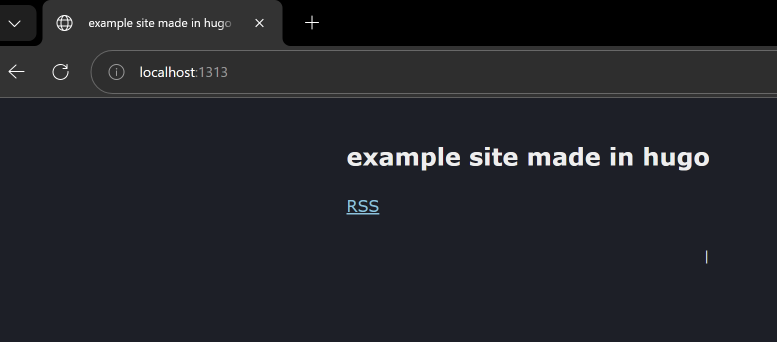
this is where stuff will start to differ depending on what theme you selected the way hugo works is themes can use different parameters (params) to set up their site.
you can figure out what stuff you can add by looking through your theme's readme file or, if they have an example site, the hugo.toml included in their files.
for example, this is the hugo.toml file for the bear cub theme's example site: https://github.com/clente/hugo-bearcub/blob/main/exampleSite/hugo.toml
here's the hugo.toml for the site i'm making for this guide using that (YOURS WILL LOOK DIFFERENT!!! don't just copy it haha):
baseURL = 'https://hugo-examplesite.neocities.org/'
languageCode = 'en-ca'
title = 'example site made in hugo'
theme = 'hugo-bearcub-main'
copyright = "© example person"
defaultContentLanguage = "en"

[languages]
  [languages.en]
    title = "example site made in hugo"
    languageName = "english"
    LanguageCode = "en-CA"
    contentDir = "content"
    [languages.en.params]
      madeWith = "made in [Bear Cub](https://github.com/clente/hugo-bearcub)"
  [languages.ja]
    title = "hugoで作ったサイト"
    languageName = "日本語"
    LanguageCode = "ja-JP"
    contentDir = "content.ja"
    [languages.ja.params]
      madeWith = "[Bear Cub](https://github.com/clente/hugo-bearcub)で作られたサイト"

[params]
  description = "An example site made in Hugo hosted on Neocities."
  dateFormat = "2006-01-02"
  [params.author]
    name = "example author"
at this point, if i use hugo server, this is what the example site i've made will look like:
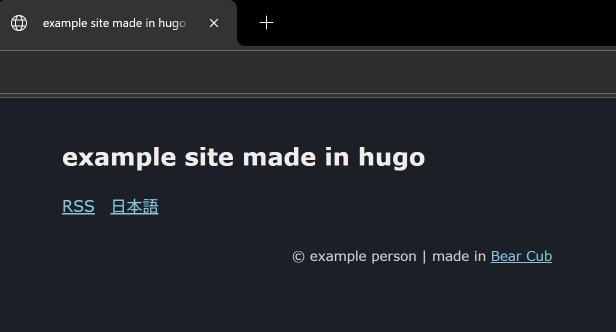
now you have a site!!!
6. add posts & pages to your site
there's nothing on your site yet. in hugo, the stuff that goes in your site like blog posts will go inside the content folder. a lot of this stuff will be specific to the theme you choose, so read the readme & check the example site for reference!
your folder structure in the content folder will be the directory structure of your site. so for example, if your site is example.com & your content folder has a file called newpost.md in the blog folder inside your content folder (content/blog/newpost.md), when you build your site, it'll be at the url example.com/blog/newpost.
for the site i'm making in this guide, i'm going to make a home page & one blog entry.
you will generally be writing your posts & pages as markdown with front matter.
if you're not familiar with markdown, you might have already used it in stuff like discord - basically it makes it easier for you to write stuff so you don't have to actually type html tags & stuff.
as for front matter, the specific stuff you need will depend on your theme! for regular pages you might not need as much.
bear cub needs a _index.md file in the content folder to show stuff on the main page of the site. here's a file i made for this guide's site just by typing text in notepad & saving it as _index.md:
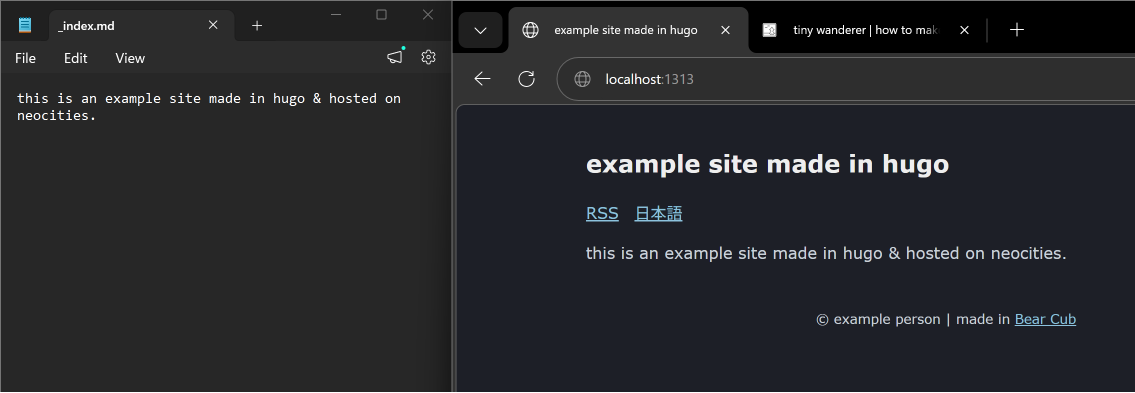
you can create a post with some default frontmatter by using the command hugo new [your post name here].md. for my example, this is what i'll type:
hugo new blog/post.md
then, when i go to the content folder, there'll be a new folder called blog, & inside it will be post.md that has this written in it:
+++
date = '2026-06-15T13:05:01+09:00'
draft = true
title = 'Post'
+++
archetypes/default.md! tweak it to your liking & make it easier for yourself to make new posts & pages
hugo automatically adds the date & sets the file as a draft by default. i'm just going to delete that since i want to publish this post, & underneath the +++ (where the toml ends) i'll write what i want to be in my blog post.
+++
date = '2026-06-15T13:05:01+09:00'
title = 'Post'
tags = ['exampletag']
+++

this is a post.
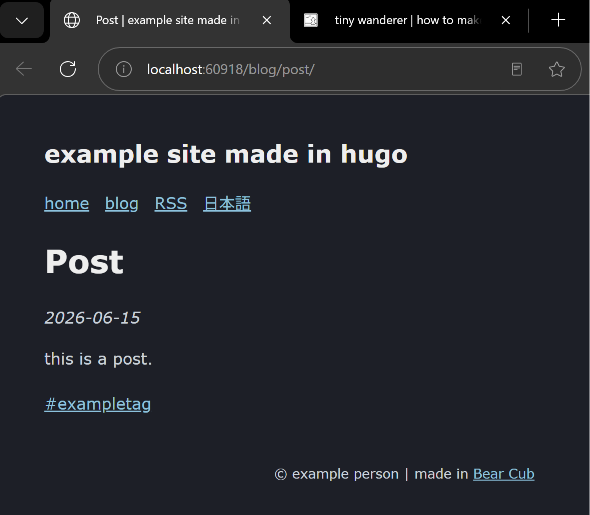
the param tags is used in bear cub to add tags to blogs, so i've added an example just to show how it would look.
for bear cub specifically, the menu & weight params are how you organise links & have them show up in the list of links at the top of the site, so i created blog/_index.md & added those to the front matter of _index.md & blog/_index.md.
this is what the blog post above looks like:
for your own site, you can add whatever you want. stuff in the root of the content folder will be pages at the root of your site. this site has an about.md, cafe.md, front.md, gallery.md, & guestbook.md, so it has about, cafe, front, gallery, & guestbook pages.
add whatever you want!!!
test & create your site
after you've made a bunch of stuff for your site, you'll probably want to know what it looks like. i said above that you can use hugo server to do that, but maybe you don't want to type commands all the time.
7. make a shortcut for testing your site
below i'm going to explain how to make a .bat file for windows that you can just double-click any time you want to test your site. if you're on mac/linux, you'll want a .sh file instead of a .bat file.
in your site folder, make a file called testsite.bat. (you can do this by opening notepad & saving the file as "testsite.bat" with the quotation marks - without quotation marks, it might save as testsite.bat.txt, which you don't want.)
inside the file, type this:
@ECHO off
:start
ECHO test hugo site
CALL hugo server -D
now, all you need to do any time you want to test your site is double-click testsite.bat & it'll open up a command-line window with your site viewable at localhost:1313.
8. make a shortcut for creating your site
there are workflows where you can actually just have your site folder as-is & deploy your site to neocities from this using github actions, the neocities cli, &c. but for me personally, i prefer to create the site files & then upload them, so that's the flow i'm going to explain here.
in your site folder, make a file called buildsite.bat.
inside the file, type this:
@ECHO off
:start
ECHO build hugo site
CALL hugo --cleanDestinationDir
this will create a folder called public in your site folder. inside this public folder are all the files you need for your site!
get your site on neocities
i'm assuming you already have your neocities account & site ready.
now there are three main ways you can get your site on neocities. none of the below is actually specific to hugo, but i figure i've written this much already, so i might as well continue.
the three ways in order of (i think) increasing difficulty:
9. a. just drag & drop your files right into neocities
you can just go to the neocities dashboard & upload your files there. just make sure to delete whatever's there already so you don't have the neocities default files in the way.
advantages: it's easy! just drag & drop everything inside the public folder into neocities.
disadvantages: every time you have to upload all your files! this isn't a huge deal if your site is small, but it will get annoying as your site gets bigger.
public folder since there may be other files that have changed too!
9. b. use the neocities cli
neocities has their own command-line interface. they explain how to use it here & i think their explanation is pretty easy to follow. you would usually want to just push the contents of your public folder (so the command would be neocities push public).
advantages: no need to individually upload stuff! you can also create your own .bat file to make this faster too or even combine this into your buildsite.bat above if you'd like to streamline things more.
disadvantages: you have to have ruby installed & if you don't want to deal with command-line stuff this might feel tedious.
9. c. use github actions
if you don't mind having your base site files on github, there is a github action called deploy-to-neocities. the page details how to use it, so if you are curious, take a look!
advantages: only updates files that are changed. once you have it set up it's easy to use. you can do stuff like set it to automatically deploy to neocities whenever you push changes to github.
disadvantages: you have to use github. you also have to be familiar with github too so it has a higher learning curve at the beginning.
if it sounds daunting i'd suggest starting with a if it gets annoying you can also try b or c later if you want to!
with that, you're done!!! your hugo site is on neocities!
but my site's still empty!!!
well the rest, unfortunately, is up to you! this guide should (hopefully) have taught you how to set up a site, create pages & posts, & upload your site to neocities, but to actually have stuff in your site, you have to write it!
below i'll write some random tips that you might want to do to help you come up with some ideas for things you can do with hugo on neocities, but whatever you use to make your site, what's in your site is your own. have fun making your site!!
⭐ add images to your site!
for hugo, if you want images, there are two places you can put them.
for most people, you probably just want to put them in the static folder! you can add a folder named images or blog or something if you want to organise your images more.
then, when you want to show an image in a post, you can just use markdown to call it:

the other place you can put images is assets - this is more for if you want to process images before actually including them in your site. i put the images for my gallery in the assets folder so that hugo can make square thumbnails of the images for me (so i don't have to make thumbnails myself!)
⭐ add emoji codes!
if you just add enableEmoji = true to your hugo.toml, you'll be able to use emoji codes like you on discord in your posts! i typed :star: to show the star in the header just above this haha.
find a full list of emoji codes on the hugo docs.
⭐ make a custom not_found.html page for your neocities site!
so neocities is a bit weird in that it requires a not_found.html file (rather than a 404.html file) to show a custom 404 page for any people who go to a page on your site that doesn't exist.
if you don't have one, it'll show a default one but that's not cute.
you might think "i should just make a not_found.md file then" but the problem is that if you do that, hugo will not make a not_found.html file - instead it will make an index.html file inside a not_found folder, which won't work for neocities.
what do you do then?
this is my dumb method:
- actually do go ahead and make your
not_found.mdfile! - build your site
- go into the
publicfolder & rename thenot_found/index.htmlfile tonot_found.html - drop the
not_found.htmlinto thestaticfolder - delete the
not_found.mdfile you made - rebuild your site
& voila, you'll have a not_found.html in your built site!
to explain, everything inside the static folder is put as-is into your site. so if you put an .html file in there, it'll show up as-is in your site.
hugo has a more proper way for creating custom 404 pages here which uses templates, which is another thing you can make!
⭐ make templates!
right now you are just using your theme gives you by default, but what if you want to customise it a bit more?
you'll notice that your site folder has a layouts folder in it. this is where templates go!
hugo docs talk about templates here, but i think this can be a bit overwhelming since there's a lot of stuff you can learn about at once, so i would suggest looking stuff up as you go (like if you suddenly want to figure out how to change how your rss feed looks or something, look up rss templates for hugo then.)
you'll probably notice that my own sites that also use bear cub look very different from the example screenshots i've shown so far. that's because i have added my own layouts with partials that add my custom css from the static folder to the header & stuff like that!
if you look inside your theme's layouts folder, you'll see the base templates it uses. if there's anything you want to change, just copy the file & put it in your own layouts folder (but make sure to keep the folder structure!)
⭐ make shortcodes!
shortcodes also fall under layouts, & i think these are where i have the most fun in hugo!
shortcodes are snippets of code that you can include in your posts. for example, all the dialogue bubbles on this page are done with a shortcode that i've created, so i don't have to type out the html for them every time.
<iframe
     src="https://store.steampowered.com/widget/{{ if .Get 0 }}{{ .Get 0 }}{{ end }}"
     frameborder="0" width="100%" height="190"></iframe>
if it is saved as steam.html in the layouts/shortcodes folder, you can type {{< steam [steam appid here] >}} in any post to show a steam widget, like so:
{{< steam 1688580 >}}
for this site i have shortcodes for embedding bandcamp albums & itch games, displaying the build time of the site, showing cute site buttons, among others!
⭐ kill the curly quotes
if you, like me, have a weird aversion to curly quotes & actually rendered ellipses in your posts, add this to your hugo.toml file! it'll make all your "s & 's stay straight & ...s stay separated.
[markup.goldmark.extensions.typographer]
  disable = false
  apostrophe = '''
  ellipsis = '...'
  emDash = '—'
  enDash = '–'
  rightDoubleQuote = '"'
  leftDoubleQuote = '"'
  rightSingleQuote = '''
  leftSingleQuote = '''
  rightAngleQuote = '›'
  leftAngleQuote = '‹'
⭐ troubleshooting!
sometimes you'll try the testsite.bat file & the command-line window will pop up for a moment & then just disappear! that usually means you've got an error in whatever file you're currently editing.
hugo will show the error if you run the command normally & not through the bat, so use hugo server regularly in this case to let hugo show you the error & then you can troubleshoot!
⭐ just have fun!
i think it can be overwhelming setting up a new site but i think making websites is a fun & creative activity that anybody can enjoy!!! the reason i wrote this is because i've enjoyed making my own websites ever since i was a kid & i think it's sad that now, a lot of the spaces people find themselves online don't let them be that creative in how they decorate them (like you have an icon & maaaaybe a profile banner but that's often it...).
in case it's helpful, i've uploaded the site i made as i wrote this guide to neocities at https://hugo-examplesite.neocities.org & also uploaded my example site folder (but minus the hugo binary) to https://github.com/npckc/hugo-examplesite.
anyway, i just think personal websites are really awesome! it can be so fun messing around & trying new things (i'm making a little bookshelf gallery for this site right now...! 👀 )
i hope this was helpful & that you can have fun making your own personal websites too.